The AI Avatar is used to convert text into voiceovers. You can also select the language of your choice for Avatar. To create a Synthesia or Colossyan AI Avatar, you must add an API as a pre-requisite. This API key should be added in settings.

13.3.5.1 AI Avatar Configuration
Menu13.3.5.1.1 Introduction
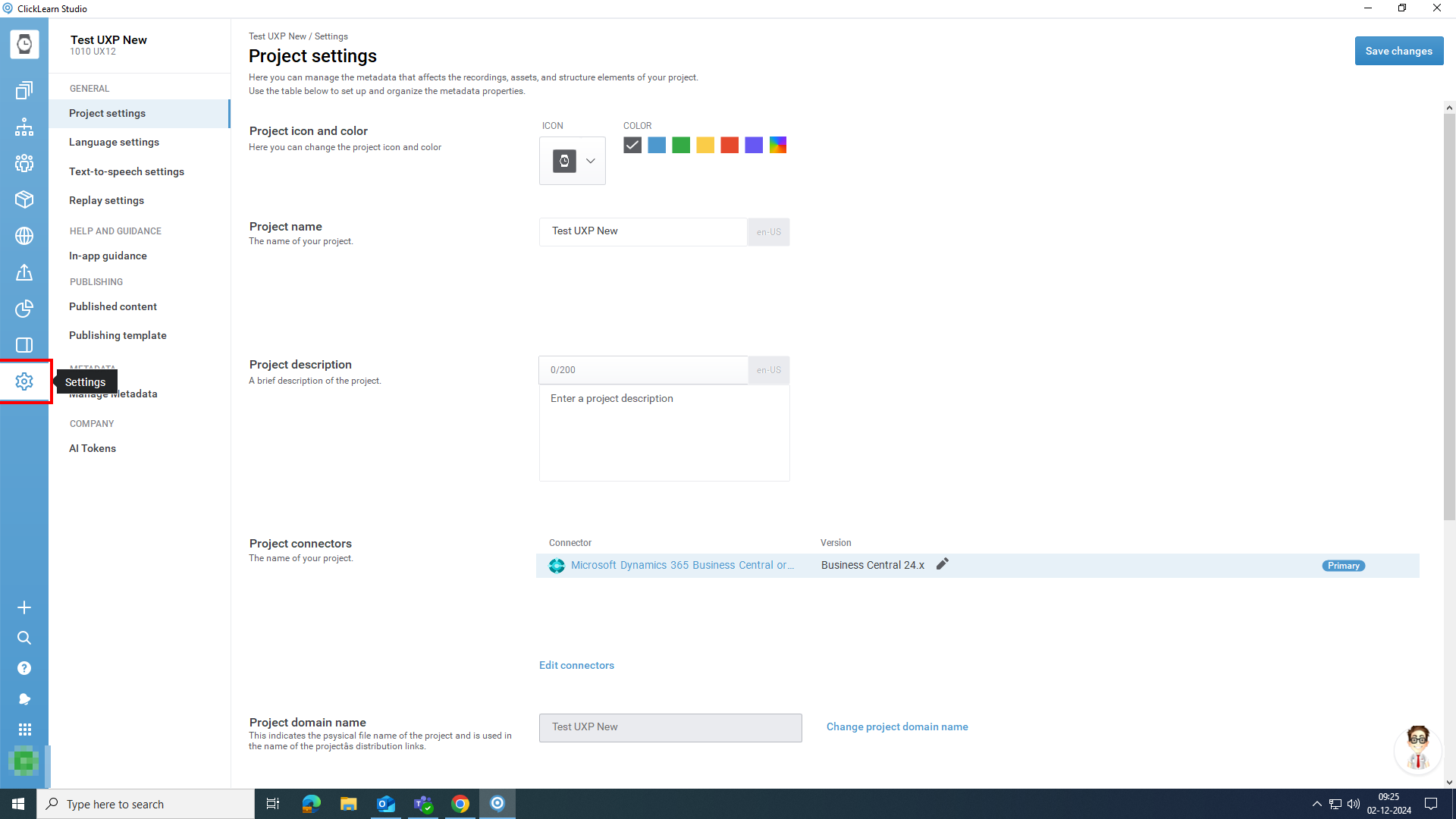
Click on the button Settings.
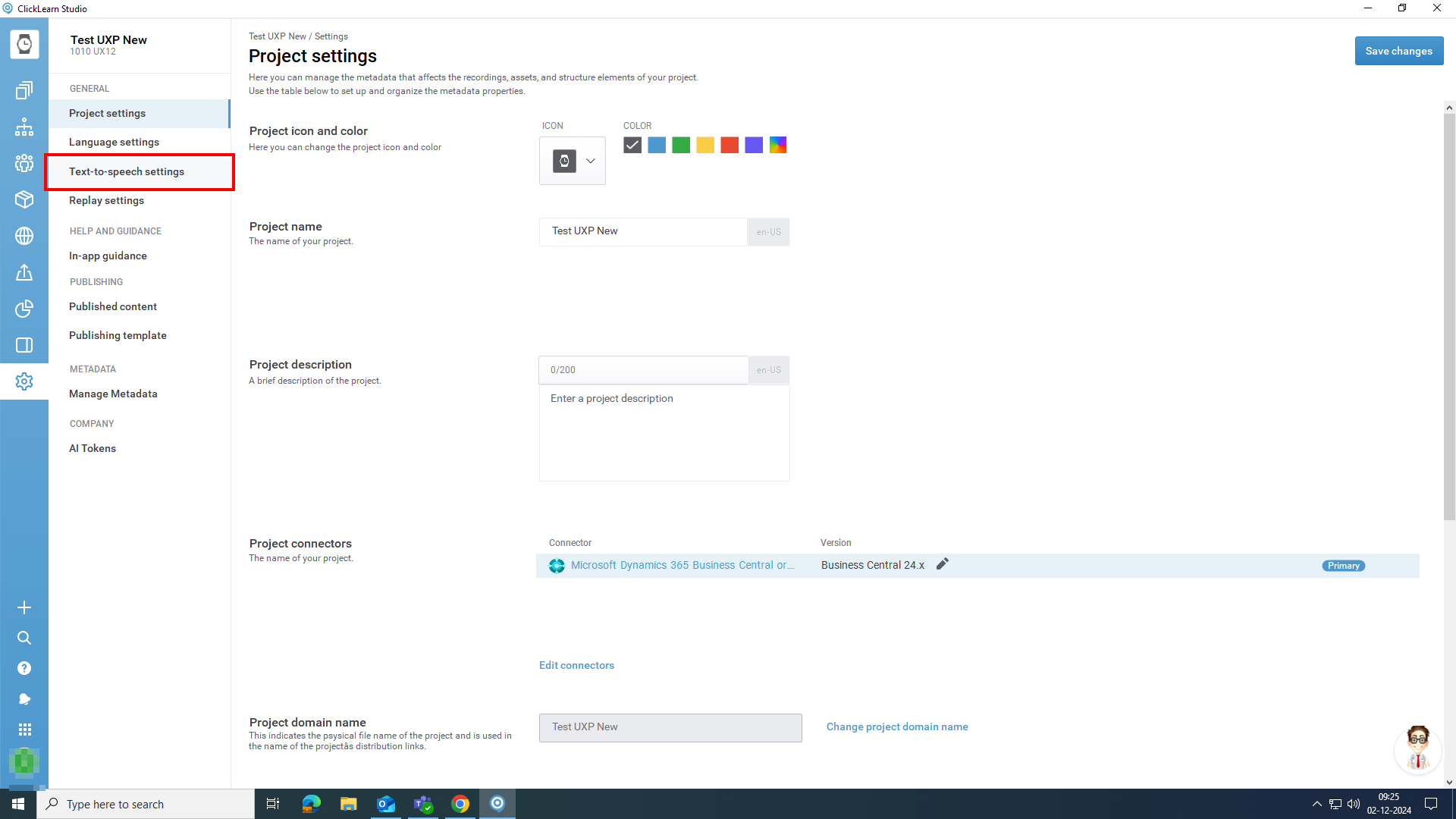
Click on the button Text-to-speech settings.
Here, you can choose from AI Avatars to turn your text into high-quality voiceovers.
Note: You can only add one AI Avatar at a time, either Synthesia or Colossyan.
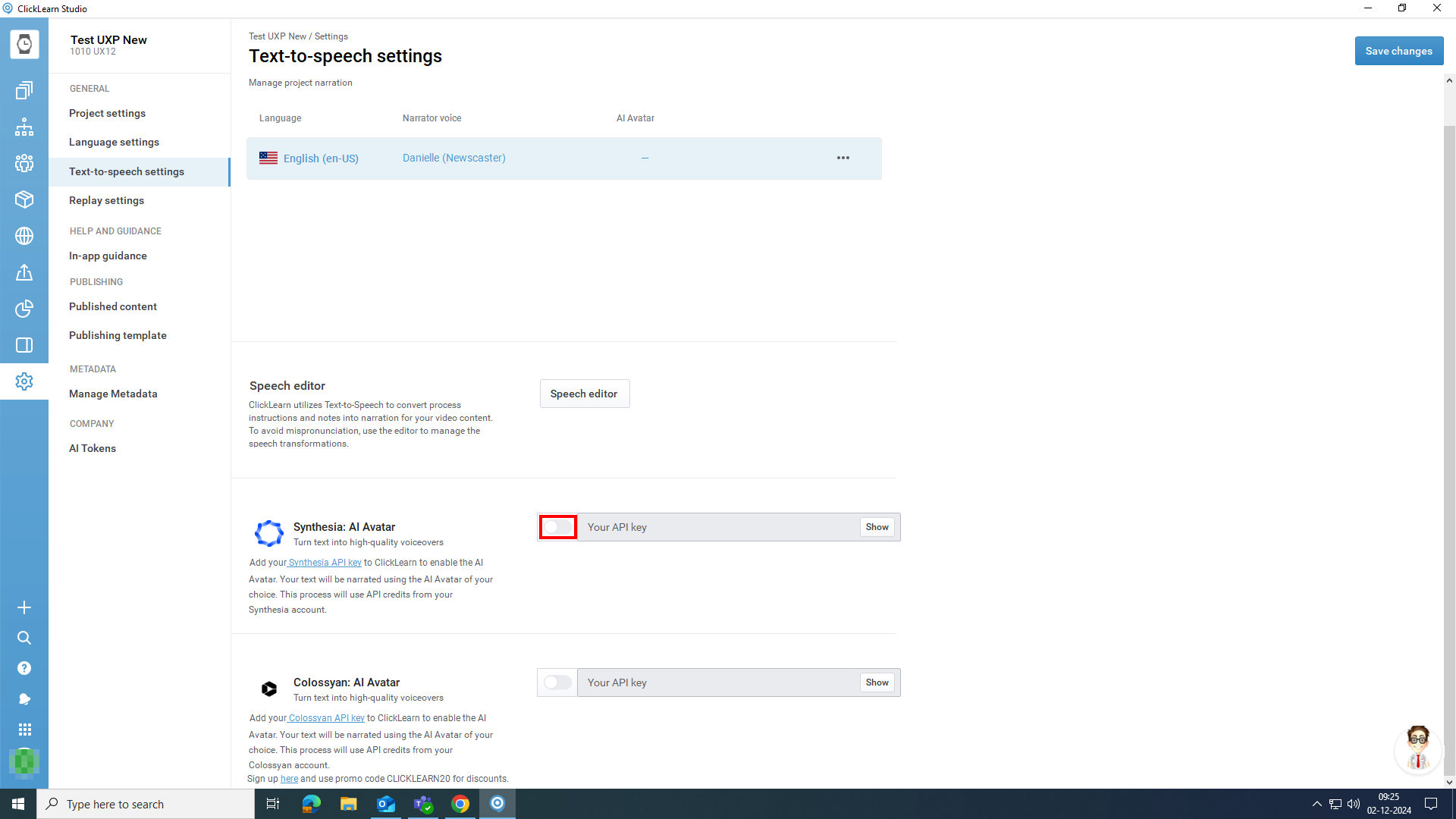
Enable Synthesia by toggling the key.
Sign up to Synthesia and get an API key. Enter the API key you get in the text box.
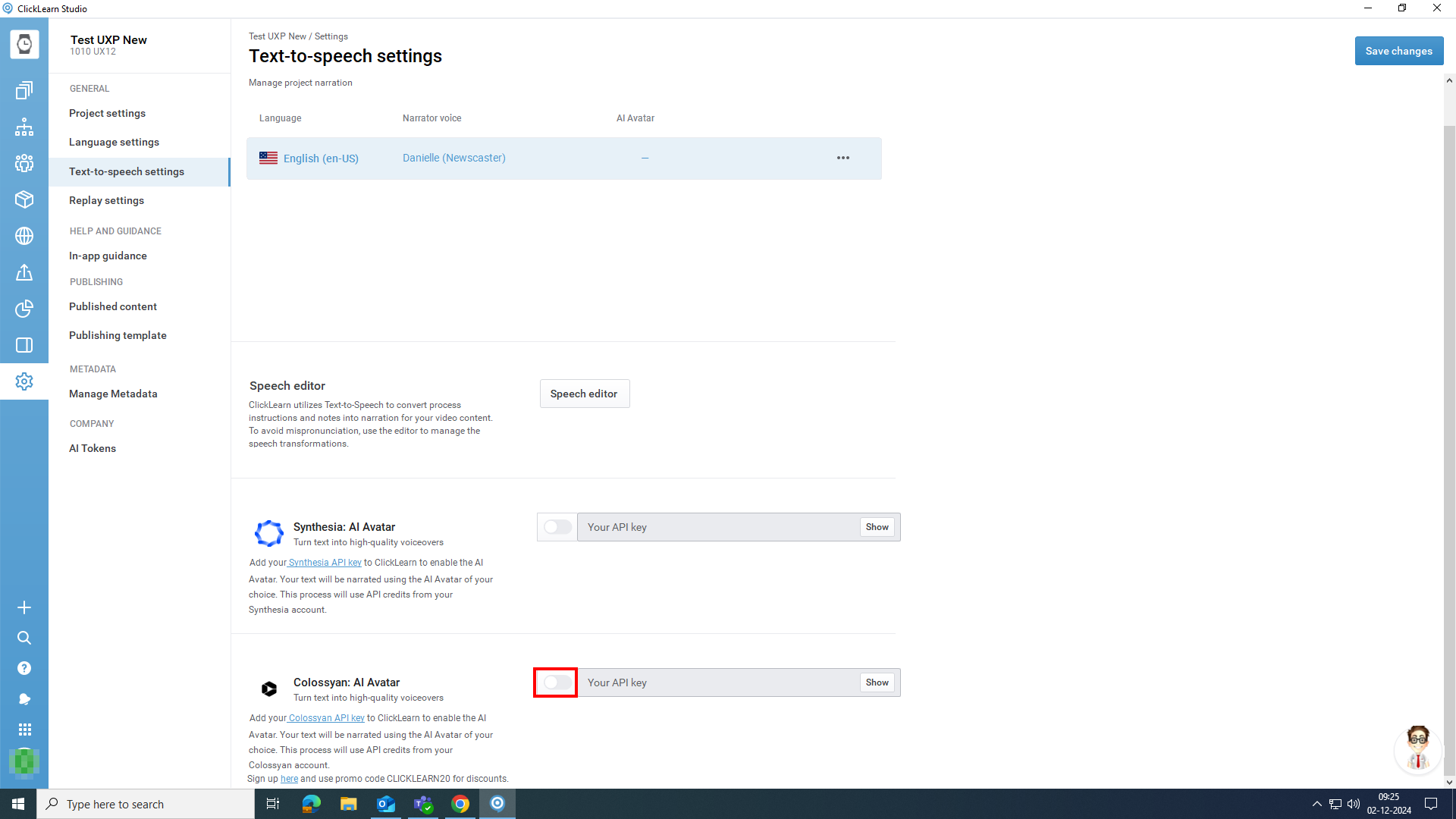
Enable Colossyan by toggling the key.
Sign up to Colossyan and get an API key. Enter the API key in the text box.
Select the Avatar
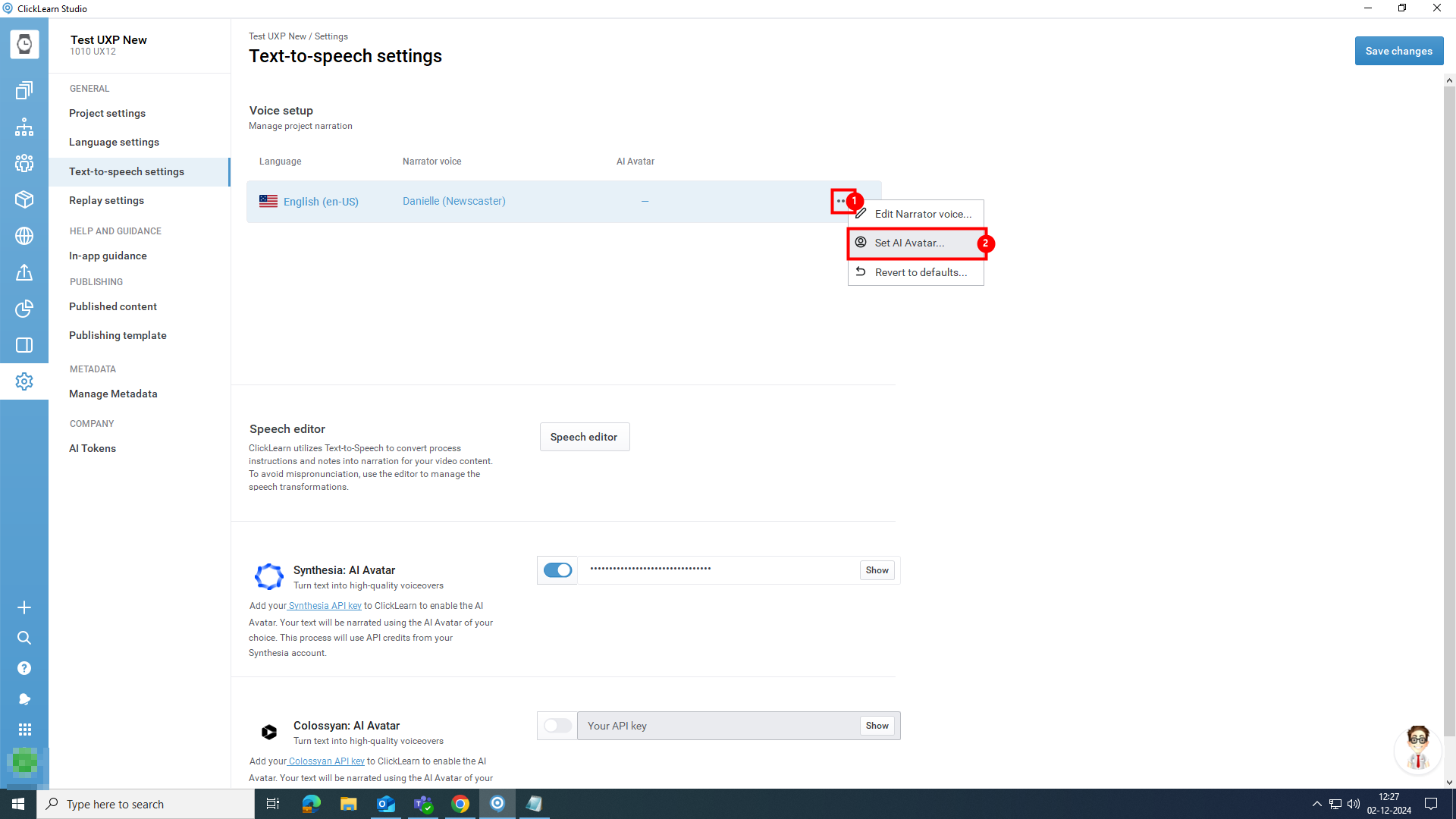
- Click on the three-dot menu against the language you need to add the AI avatar.
In this case, we are selecting the English US language. If there are multiple language options, you can select any one of your choice. - Click on the menu item Set AI Avatar.
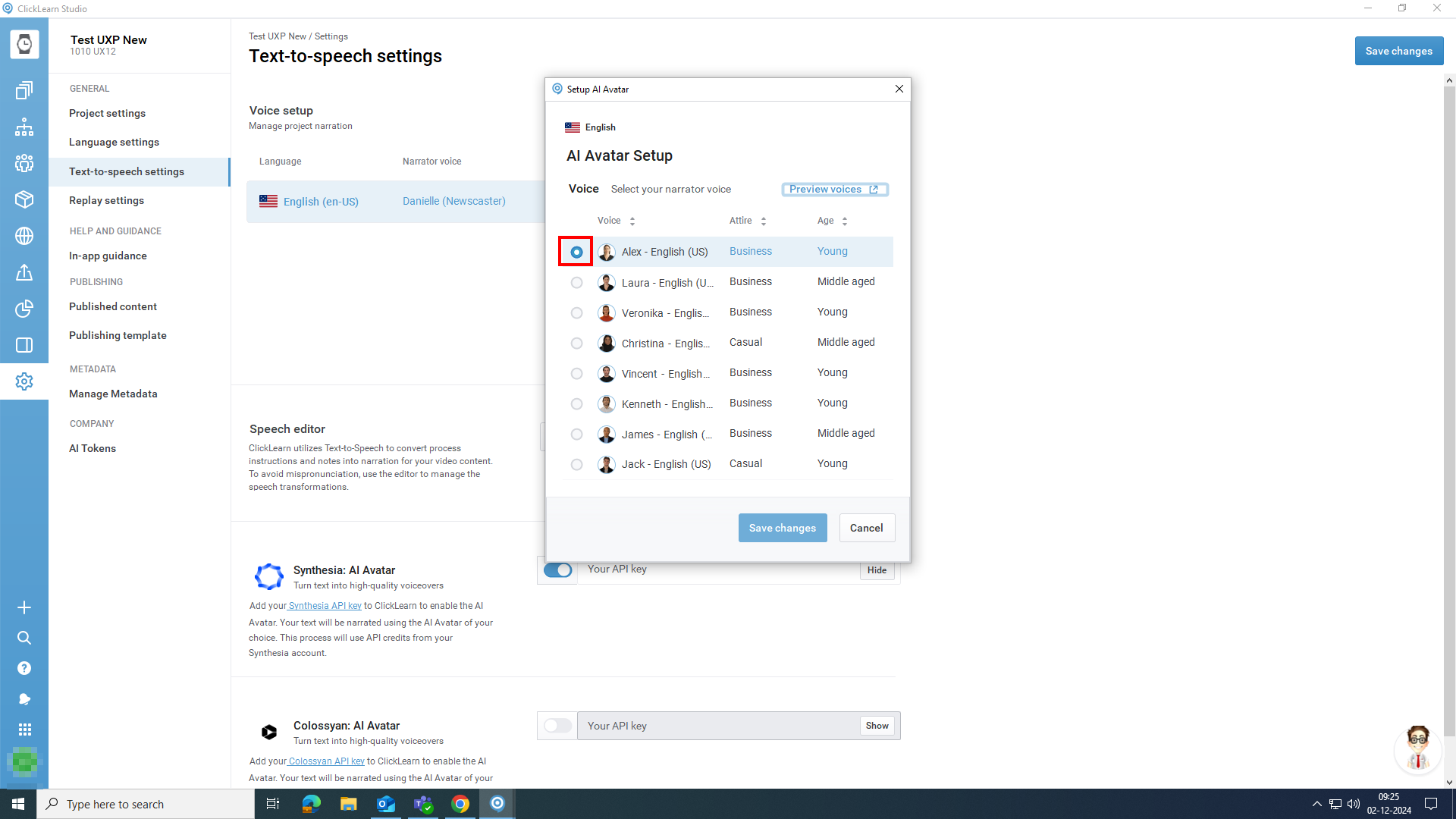
Setup AI Avatar dialogue to preview and select avatar and hit save changes to save your selection.
You can customize the voice, attire, and age based on your project requirements. Here, we have selected the Voice with the value Alex - English (US).
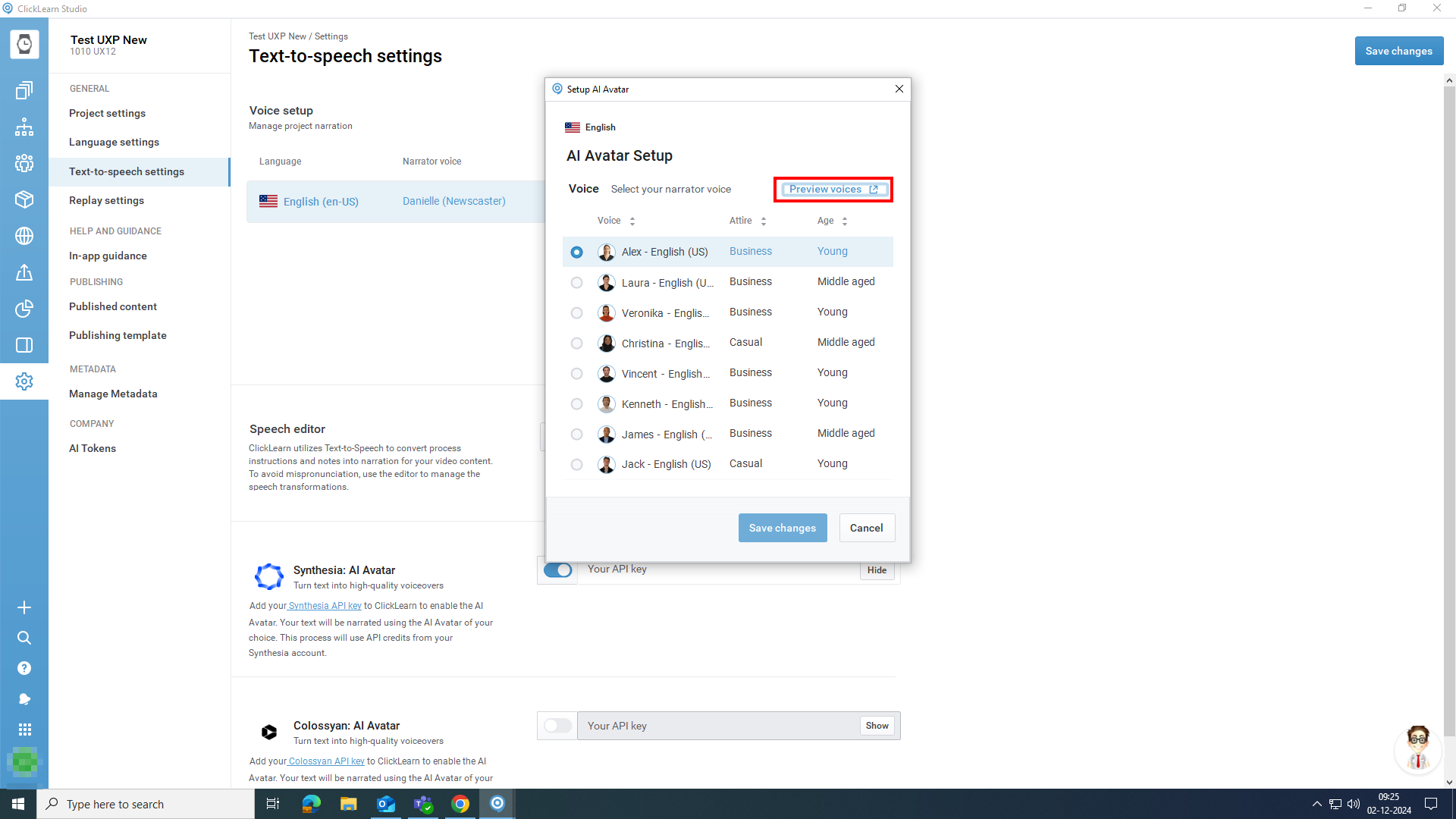
The Preview voices button allows you to preview the voice.
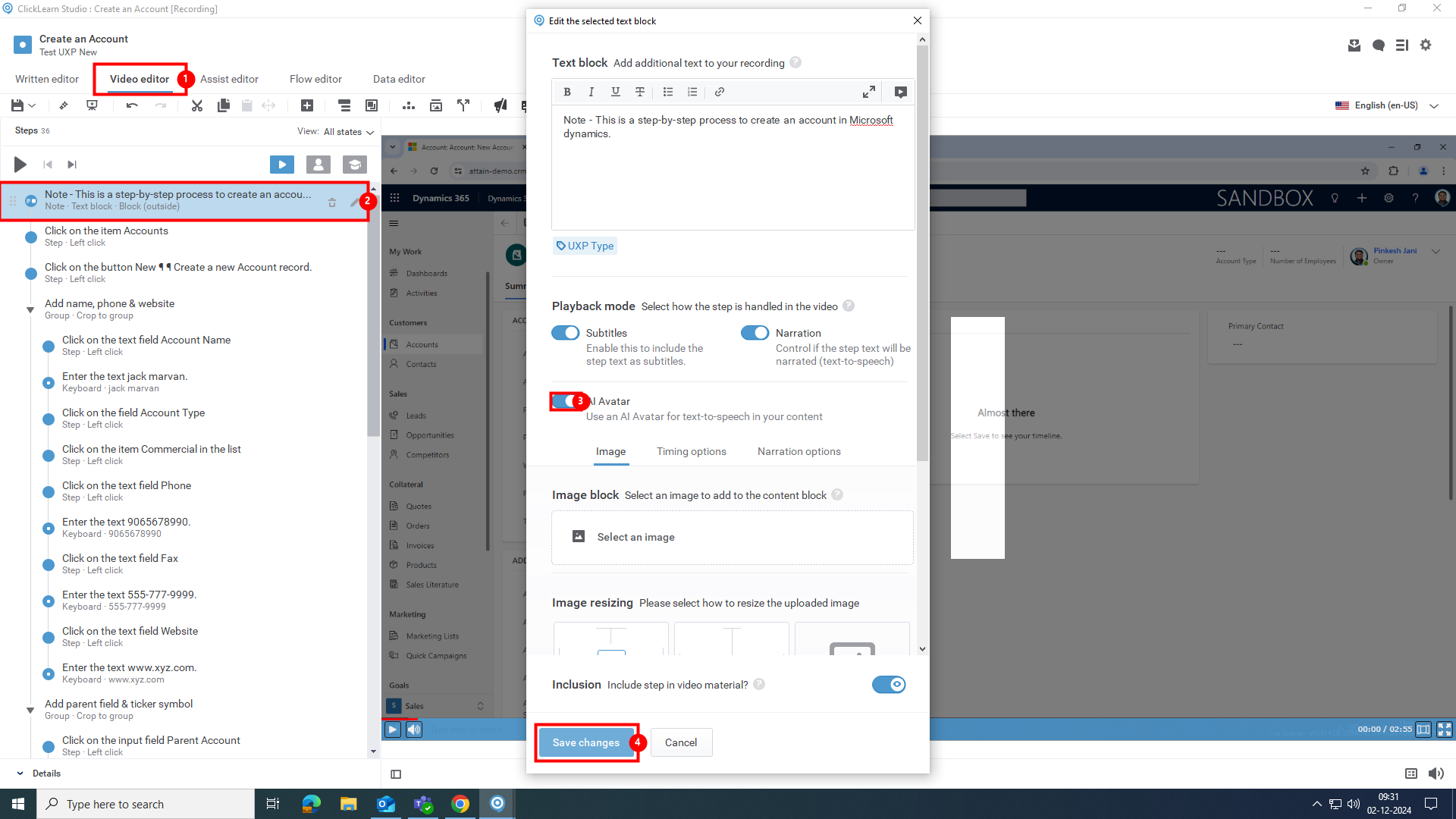
Enable AI Avatar
- Click on the tab item Video editor.
- Double click on the note and apply the changes you desire.
- Enable/Disable AI Avatar settings.
- Click on the button Save changes.
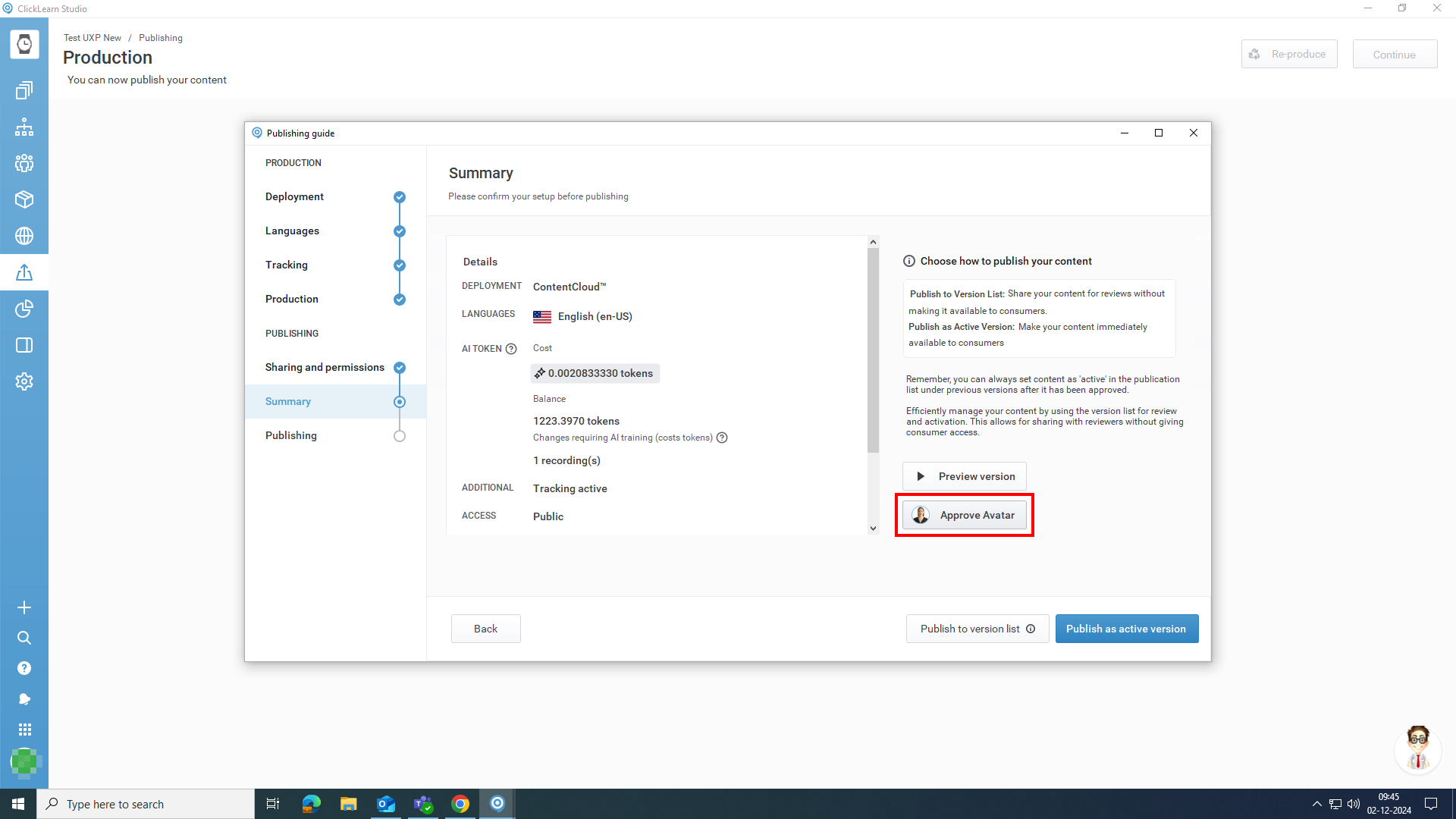
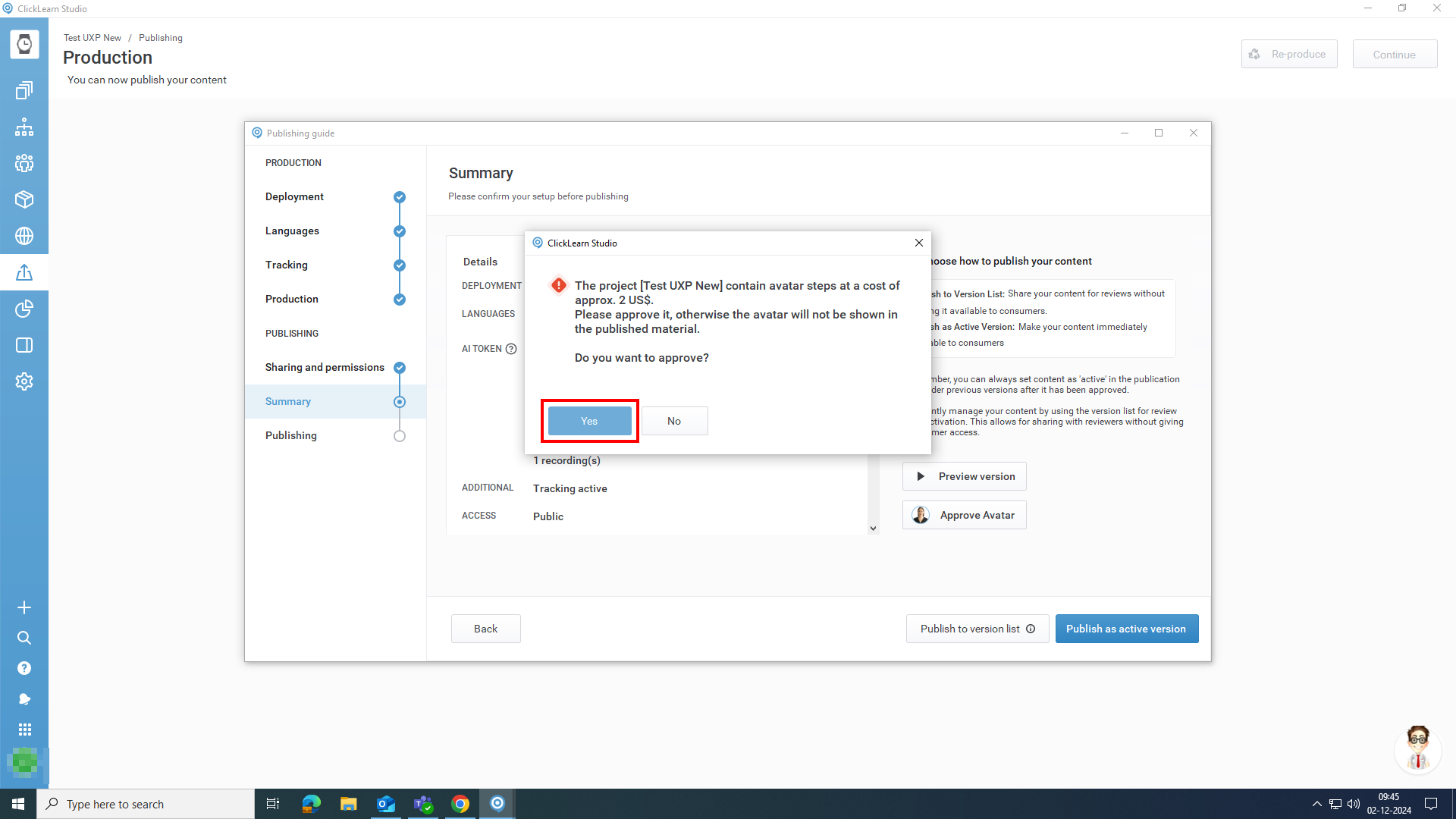
Once you enable AI Avatar, go to publishing and follow the normal publishing process until the summary. In the summary page, Approve the avatar and confirm it.
Click on the button Approve Avatar.
Click on the button Yes.
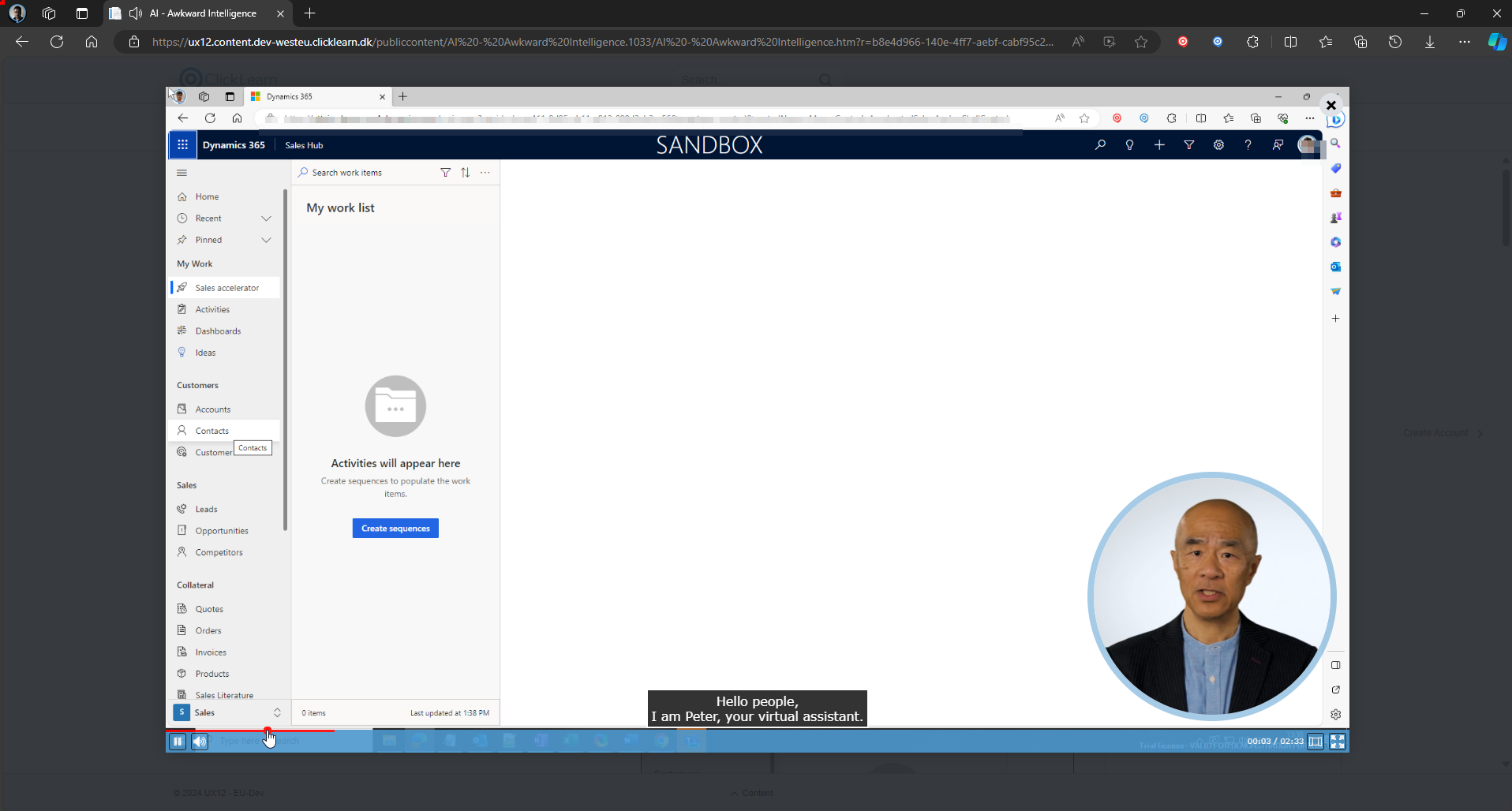
This is how the screen looks when an AI Avatar is generated. After the AI Avatar is completed, you need to publish the content. This will publish our content with the AI avatar.
Your comment